Lights, in place
Toggle lights and adjust supported brightness, color, and white temperature. See their state reflected in the room.

Bring your rooms into Home Assistant. Connect the lights, shades, and adjustable desks in your model to your real devices, then make the view your own.
Open source · MIT licensed · Room manager and dashboard card included
On your dashboard
Add a saved room view to your Home Assistant dashboard. See device states in the space itself, with your other cards close at hand.
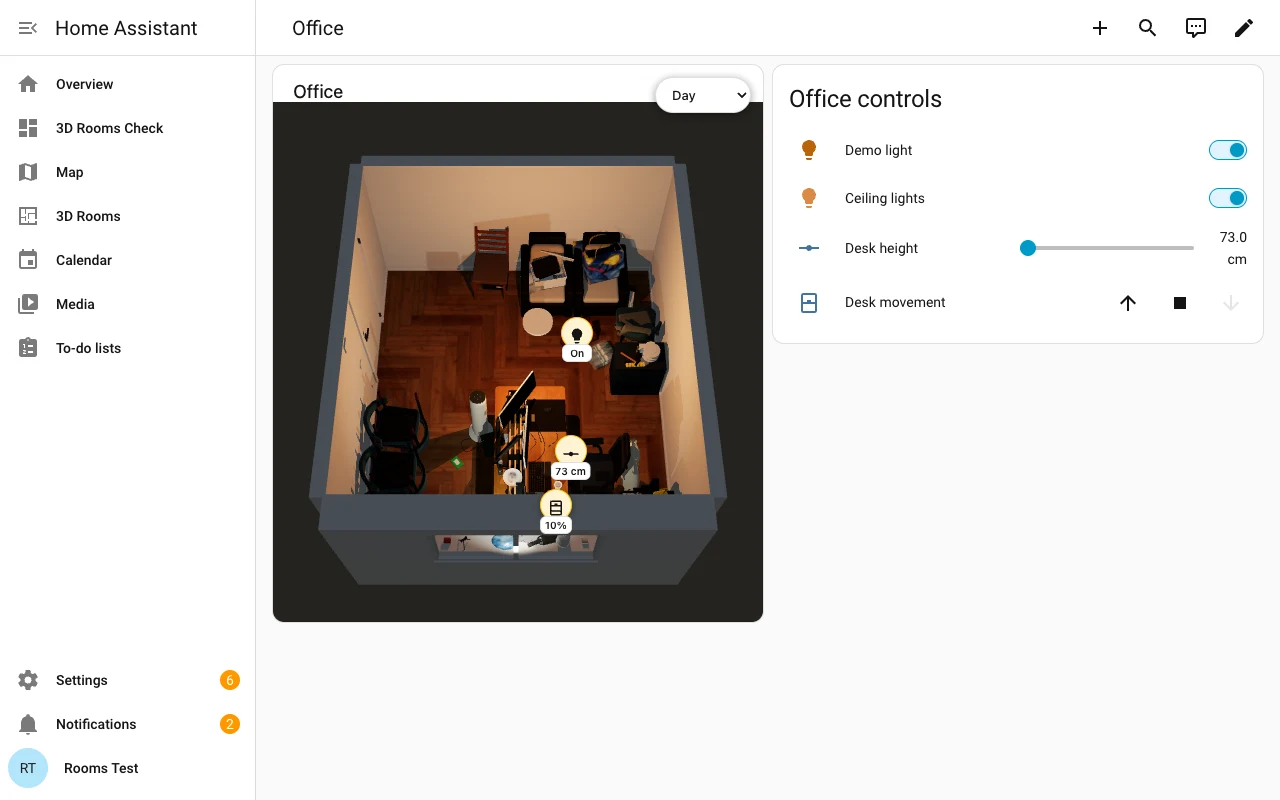
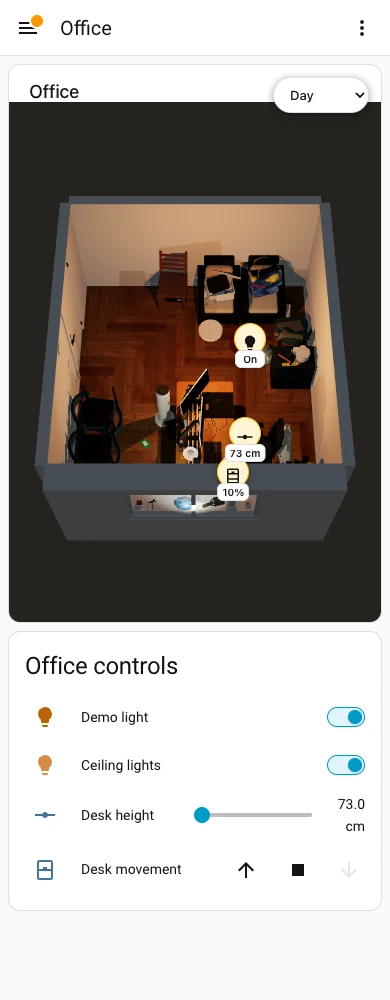
Screenshots from a local Home Assistant dashboard using the office model and simulated devices. Select either image to see it full size.
A room that responds
Toggle lights and adjust supported brightness, color, and white temperature. See their state reflected in the room.
Open, stop, and close compatible shades. Prepared models can follow their position, with Day, Night, and Auto lighting.
Bring desk height, movement controls, and four configurable macros together in one device card.
Orbit, pan, and zoom to frame the room. Save a dashboard view and reuse it across cards.
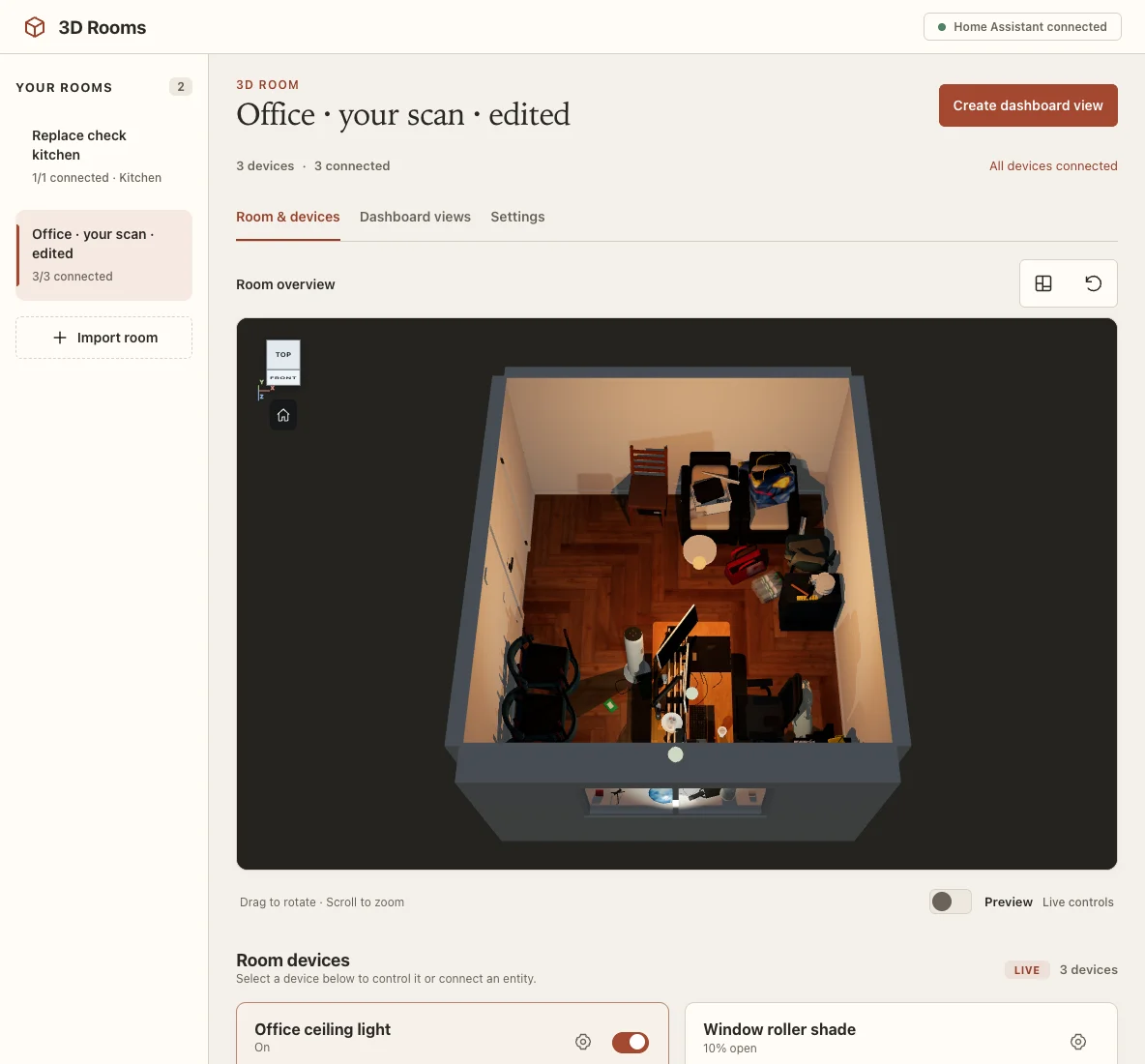
The room manager and dashboard card install together. Import a room, map its devices, and add it to your dashboard.
Keep room models and entity mappings in your Home Assistant installation. Export rooms for a portable backup.
Available controls depend on the model’s prepared device nodes and the capabilities of your mapped Home Assistant entities.
From model to dashboard
Add astritzeqiri/ha-3d-rooms as an Integration in HACS custom repositories, then download it. Restart Home Assistant and add 3D Rooms under Settings → Devices & services. You’ll need an administrator account and Home Assistant 2025.1.0 or later.
Start with a LiDAR scan or a model you build yourself. Prepare a room ZIP with an embedded GLB and device definitions, then choose Import room in the 3D Rooms sidebar. Read the room package guide.
Use each device’s settings cog in Room & devices to choose a compatible Home Assistant entity. Turn off Preview when you’re ready to send commands.
Choose Create dashboard view, frame the room, and save it. Add the 3D Rooms card to your dashboard and select your room or saved view.
Good to know
No. You can build your own model or adapt one you have permission to use. The scan workflow uses 3D Model Anything and a LiDAR-equipped iPhone or iPad. Both routes finish with a prepared 3D Rooms ZIP.
These need preparation first. A room package contains an embedded model and a manifest describing its controllable devices. Fixtures need separate, identified nodes; a flattened mesh does not automatically become controllable. The Room to Home Assistant skill can help assess and prepare an editable model.
No. The card comes with the integration and loads automatically. After setup, choose Edit dashboard → Add card → 3D Rooms.
See the documentation, read the release notes, or report an issue on GitHub.
Built on the capture and reconstruction foundation of Wes Bos’s 3D Model Anything. 3D Rooms adds the Home Assistant model library, entity connections, and dashboard controls. See third-party notices.